Learn more about WCLN's SMS (Student Management System) by clicking on the links provided below. As with all WCLN items, the SMS is totally non-profit - ie. every cent from members is used for upgrades and new features.
-
SMS: Quick Summary
-
SMS: Process at a Glance
-
SMS: Initial Set-up
-
SMS: Report Cards
-
SMS: Grade Display Options
SMS: Quick Summary
When time allows, within the video below, we'll replace reference to TwoStoryRobot with Corunio.
SMS Funding
SMS yearly development fees are per list below (100% of the SMS fees go back into SMS updates and additional features).
-
-
- $2750 for members with an annual expected student FTE of 0 - 300 (0-2400 student courses accesses)
- $3300 for members with an annual expected student FTE of 301 - 450 (2401-3600 student courses accesses)
- $3850 for members with an annual expected student FTE of 451 - 600 (3601-4800 student courses accesses)
- $4400 for members with an annual expected student FTE of 601 - 750 (4801-6000 student courses accesses)
- $4950 for members with an annual expected student FTE of 751 - 900 (6001-7200 student courses accesses)
- $5500 for members with an annual expected student FTE of 900+ (7201+ student courses accesses)
-
SMS Hosting
SMS code needs to be hosted (at an additional cost).
Most districts choose to host with Corunio (formerlyTwoStoryRobot), as it keeps things clean and simple (automatic updates and knowledgeable maintenance).
Technical Documents
These are documents produced by Corunio:
SMS:Process at a Glance
Each student's central journey through the SMS will look something like this:
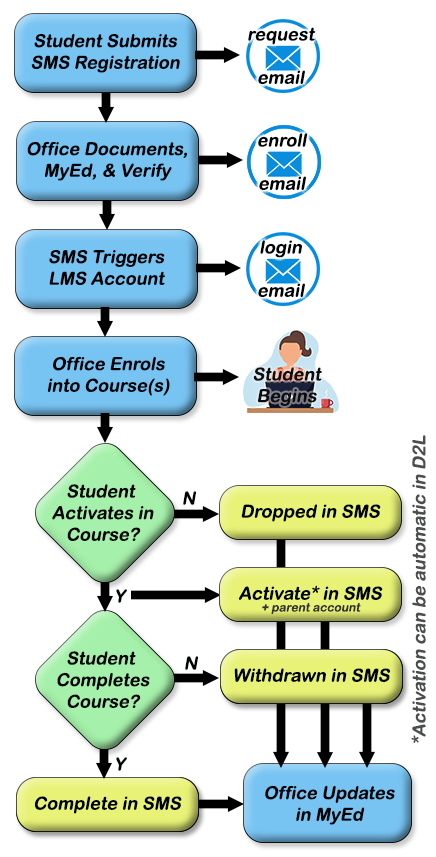
Some extra details about each main step:
 |
Students (and/or parents) can register at your program's registration page. Office trick: adv filter = request + sort by recent |
|---|---|
 |
An email is generated upon the successful submission of a registration form. The email is customized by your program, but generally confirms their application and requests required documentation. |
 |
Once the office receives required documents, they can ensure the student has a MyEd account, then verify them. Verification automatically creates an LMS account. |
 |
This email (sent from the SMS) confirms that the student is verified and lets them know that their login information will be coming soon. |
 |
As a result of the successful verification, the SMS sends a request to the LMS to make a student account and send out the login information. |
 |
This email is automatically sent from the LMS as a result of building a new student account. Includes: Username, Password, and site URL. |
 |
Once verified, the can enroll students into specific courses. At this time, it's good to add this course in MyEdBC. For home=OL students, office adds courses per plan. For cross-enrolled/grad adults, office adds maximum of 2 course (ensuring VP/counsellor can check cross-enrolled/grad adults for any issues: |
 |
If/when a student meets activation criteria, they will need to be activated. Office trick #1: adv filter: status = activation (bottom of list) Office trick #2: use |
 |
If/when a student completes a course, they can be completed in the SMS. Office trick: use |
 |
Once the student is completed, withdrawn, or dropped, their status is changed in the SMS and the office can finalize in MyEd. |
 to keep track of which ones are done in MyEd.
SMS:Initial Set-up
Admin Settings
Before students begin registering the following items should be addressed. These settings can be found in "Admin Settings" in the drop down menu on your profile name in the top right.
1. School District number (e.g. 023) - this will sort the schools from your district at the top of the school list.
2. Report Card Header - this can include school name and is one line only
3. Report Card footer - you can include school name, address, phone number, website, etc.; one line only
4. Registration email - this is the email a student receives upon submission of the registration form. It may include information about necessary documents and further instructions to the student.
Sample email: Thank you for registering for a course with the Online School. You will be contacted shortly with further information. If you are not a student in this district you will have to provide information before you can start the course. This will include BC Identification, Birth Certificate and Care Card.
5. Verification email - After the student information is verified, the student receives an email with their username and password; additional information can be added here, e.g. link to access the site.
Sample email: Below you will find your user name and password to access the course you recently registered for. Please go to http://mymoodlewebsite.com and log in. Under the link "My Courses" you should find the link to your course. Please begin the course as soon as possible as you are not formally registered in the course until you have completed the first few assignments. Please email or call if you have any questions or concerns.
6. Confirmation statements - These statements will appear at the end of the registration process, before the student submits the registration form. You may include as many as necessary.
Sample confirmation statement: I understand that this application and agreement represents a legal digital signature on my behalf for registration in this online course. I agree to communicate with my teacher(s) regularly and complete all course work in a timely manner, keeping track of all deadlines.
Staff
The link for staff is at the top left of the page. Add staff members and assign a role (teacher, admin, clerical, counselor) and a school.
-
-
- Teachers - Teachers are restricted to viewing students in their courses in LMS
- Admin - Admin can see everyone and do everything (including system set-up).
- Clerical - Same as admin, but can't adjust system settings (eg. make staff, set-up options, etc....)
- Counselors - Counselors are restricted to their students enrolled in their schools.
-
Note that the email address for teachers will link to their LMS email address so they should be the same.
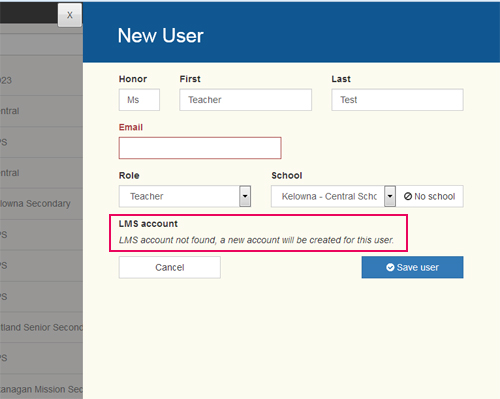
Once you select the role of TEACHER in the SMS, the account should sync to their LMS account, or you should receive the message as shown below.
If you add a teacher who has an account in the LMS, the SMS will send an email to that user with their username and password.
If the teacher is not already in the system an account will be created and the login information emailed.
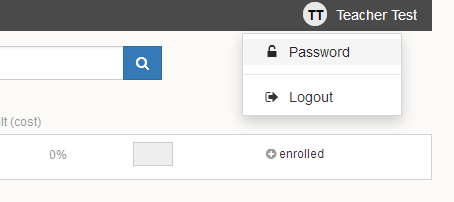
Users should be encouraged to change their password by going to the top right profile area.
Courses
Moodle courses need to be designated as open, closed or hidden.
open - courses are displayed on the list of courses that students may select from
closed - courses are not displayed on the list of courses (for registration) but are available through the SMS
hidden - courses are hidden in LMS and are not tracked by the SMS
A program needs to be applied to each course, e.g. DL - elementary, graduated adults, etc.
SMS:Report Cards
Built-in Report Card
The Report card is generated as a downloadable pdf and includes the current status, current grade and percent of course completed. The pdf will include all courses for the student, except those that have been requested or dropped.
Report Cards Options
The SMS has a report card feature built-in. This can be used as a progress report for parents (24/7 access) and/or for formal report cards.
FAQ: We often get the request that the SMS should mail out these report cards. We've talked with the MoE lawyers and it was made very clear that we shouldn't build a system that emails something as personal as an official report card. Access to the same info in a Parent Portal (with a DOB and PEN) is perfectly fine, but not email.
Here are two common ways that DL programs deal with report cards:
-
-
- Have the teachers put their report card data (WH and comments) into the SMS, then send out a note to all parents telling that they can access the report cards through the parent portal. Good to explain how to access PEN numbers from previous report cards to save your secretary from a pile of calls.
- Have the teachers do the report cards in MyEdBC. This is popular with local schools and parents as it puts all the students' reporting data in one place for easy reference. For asynchronous programs, you'd usually skip the grade area and populate the WH and comment fields. The standard comments might look like this:
-
Online Course through ************
Portion of Course Completed = **%
Current grade in Course = **%
See the Parent Portal on the **************** site for 24/7 updates.
If parents want a weekly "Progress Report" send your email address to the teacher.
********personal comment**************
Parent Portal
The Parent Portal provides parents with a way to access student report cards. It can be accessed by going to /parent/.
So if your registration is at http://myschool.com/registration/ and the staff access is at http://myschool.com/staff/ then the parent portal can be accessed at http://myschool.com/parent/.
The interface includes a place for the PEN and the Date of Birth. The report card is then generated as a downloaded pdf.
Archiving Reports
It is recommended that a program archive all their report cards at each reporting period. This proves very useful for future student/parent questions, as well as audits.
To archive ALL current students/courses, select Exports at the top (clerical/admin only). Then select the refresh button to have the system generate the latest data. This can place a load on the server and may take some time to generate; it is suggested that you generate this in off-peak times. The time since the last generated file is indicated. Save the file.
The zipped file that is generated contains two files for each student in the system - a pdf of their report card(s) and a pdf of their SMS Activity Log (contact log).
SMS:Grade Display Options
Proficiency: Grades 4-9
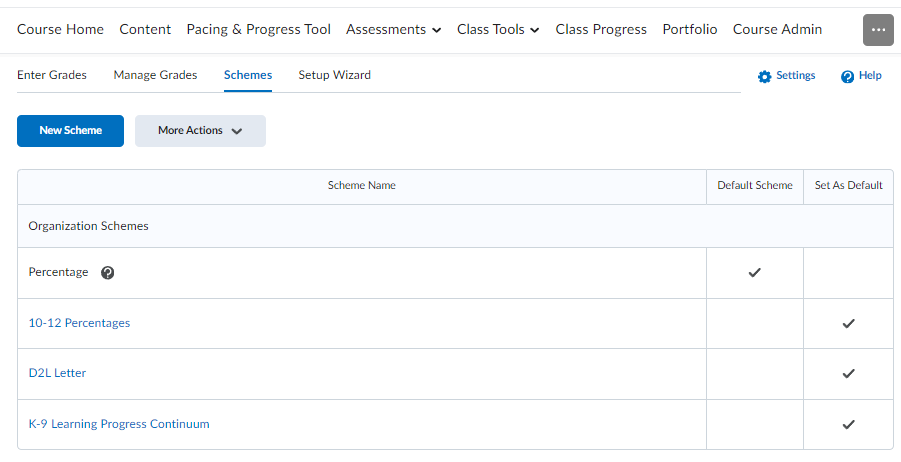
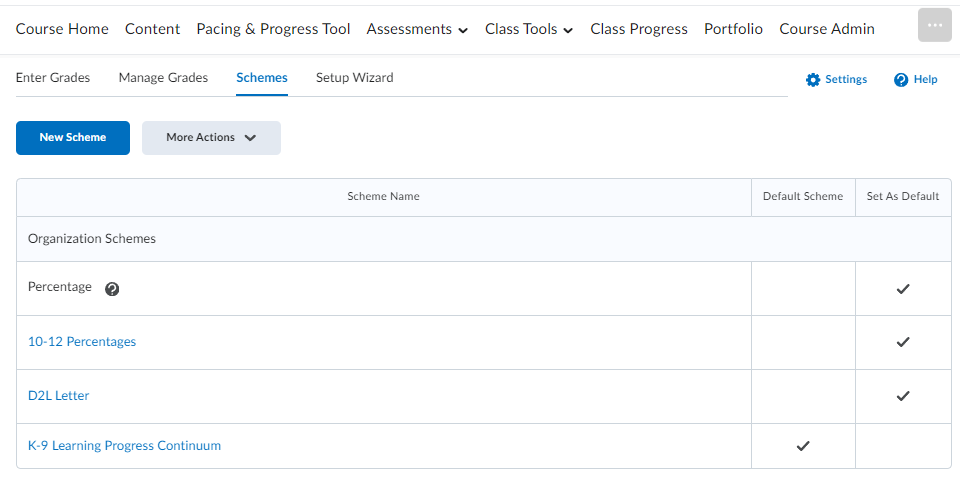
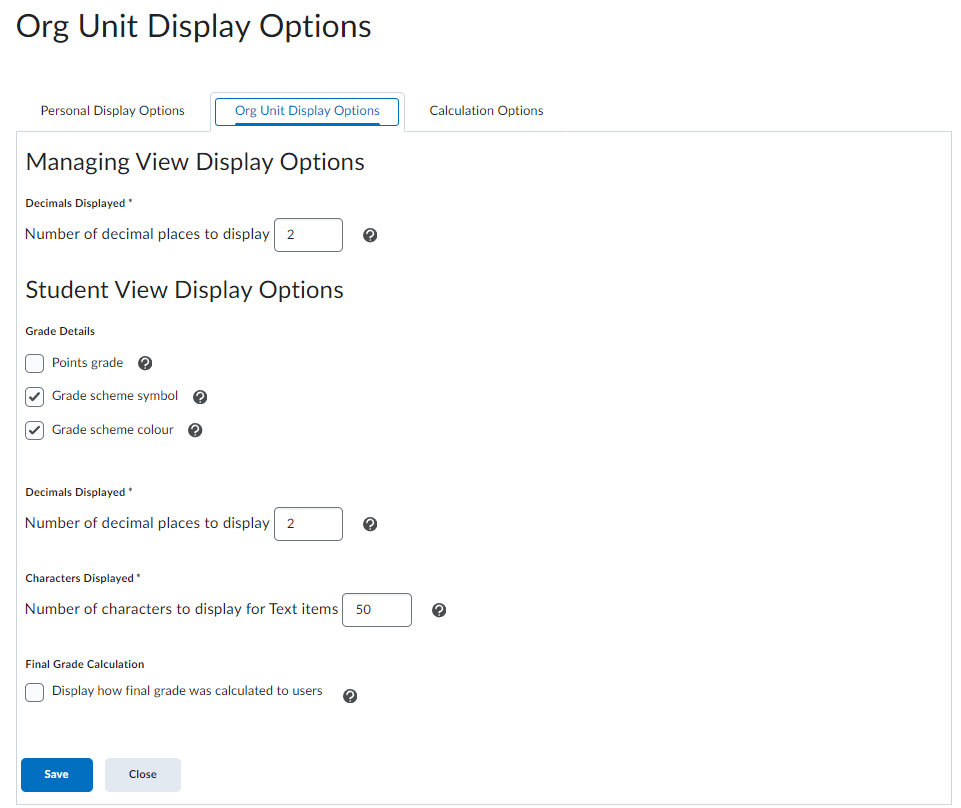
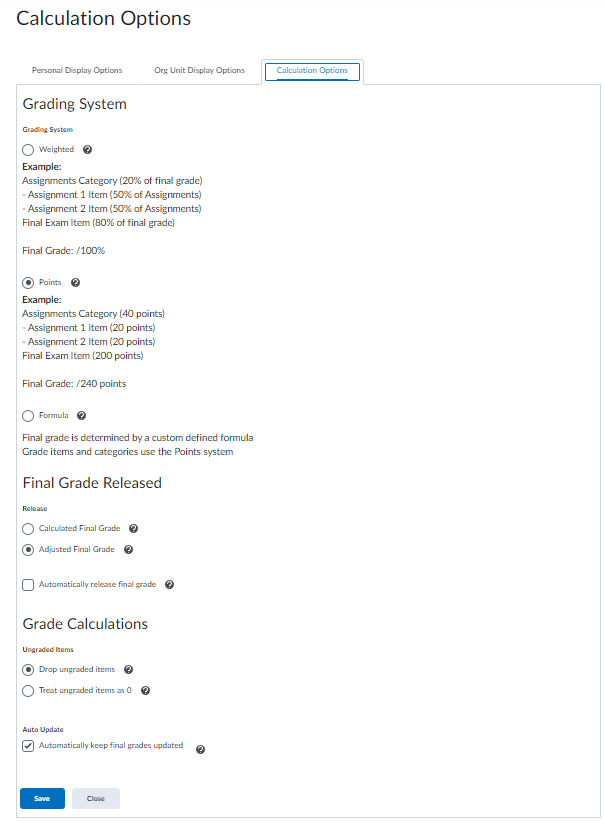
You can set-up your D2L course to display a current grade as a proficiency for each individual item in the Learning Updates. The current grade is blank in the main table, as well as the overall grade for the Learning Updates.
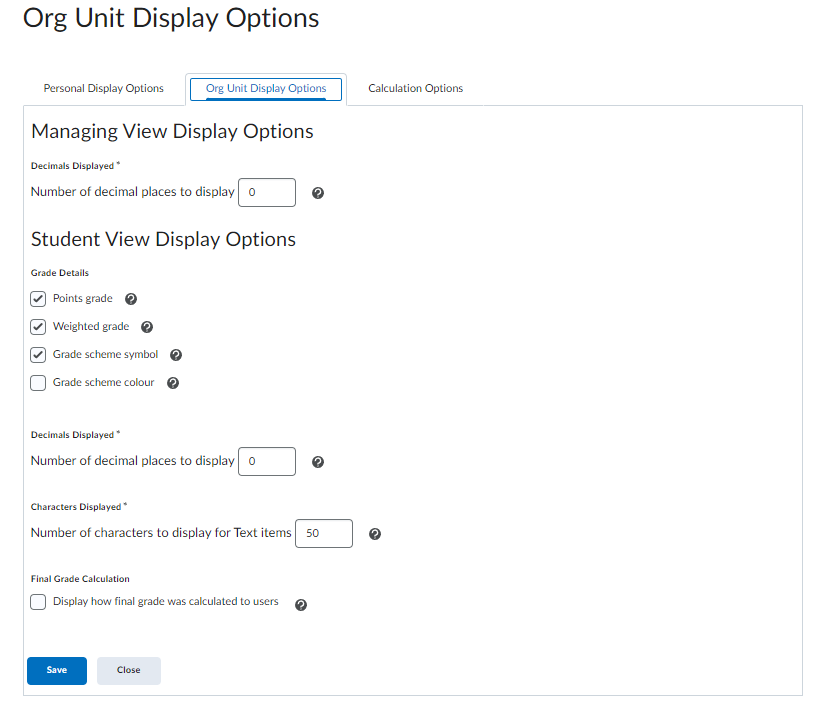
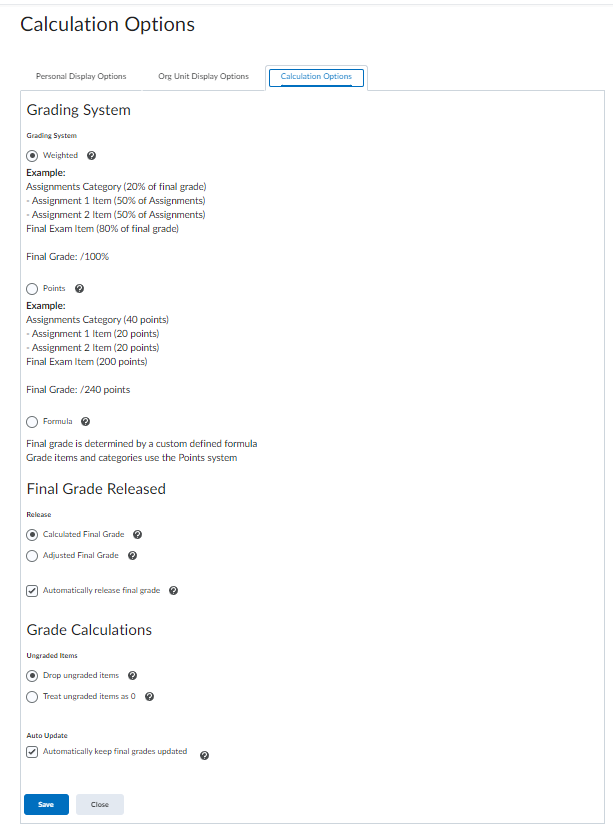
Below is a sample set-up that results in the SMS showing the current grade as a Proficiency.
Percent Grades 10-12
You can set-up your D2L course to display a current grade as a percent in the main table, as well as the Learning Updates (each item and overall).
Below is a sample set-up that results in the SMS showing the current grade as a percent.